sfeed.dev
sfeed posts to social media from the terminal or from an AI agent.
It supports Facebook Pages and Instagram Business or Creator accounts. Instagram connects directly, without a Facebook Page. You install the CLI, connect the platforms you want in the browser, and post. If you use an agent, you can also install the public sfeed skills so the agent knows the setup, platform limits, and scheduling commands.
Meta has approved sfeed’s production access for Facebook Page and Instagram publishing. You connect through sfeed’s app without creating your own Meta developer app.
Drafts can stay in markdown files. Media can stay in folders. Rules can live next to the work. An agent can read that context, prepare a post, ask for approval, and use sfeed to publish it.
Why I built it
I wanted social posting to fit into my local agent workflow.
Most social tools put the dashboard at the center. That works for teams and campaigns. It feels heavy when the source material is already on my machine and the agent is already in my editor.
For that workflow, the posting layer should be small. It should handle auth, uploads, platform rules, scheduling, previews, and status checks. The drafts can stay where they are.
My current use case is promoting Lound, my voice journaling app. I keep launch notes, screenshots, short clips, and posting rules in a local folder. Then I ask an agent to turn that material into Facebook and Instagram posts, review the drafts, and schedule the ones I want to use.

How it works
Install the CLI:
curl -fsSL https://sfeed.dev/install.sh | shConnect the platforms you want. Run either connection command, or both:
sfeed auth facebook connect
sfeed auth instagram connect
sfeed destinations
Post directly:
sfeed post "Launch notes are live" --to facebook
sfeed post "New demo" --to instagram --media ./assets/demo.png
If you have multiple destinations on a platform, add --page "Account name or ID" using the name or ID from sfeed destinations.
Or start the MCP server:
sfeed mcpFrom there, an agent can inspect connected accounts, choose the right Page, draft a post, ask for approval, and publish or schedule it.
You can also install the public agent skills:
npx skills add nem035/sfeed --skill sfeedThe public repo also includes smaller skills for Facebook posting, Instagram posting, and hosted scheduling. Its agent plugin instructions cover installing the Claude and Codex plugins from the GitHub marketplace. Those plugins bundle the main skill and local MCP server configuration; the CLI and browser connection are still required.
Scheduling uses the paid hosted scheduler. Replace <future-ISO-8601-timestamp> with a future date and time including its timezone offset:
sfeed post "Scheduled update" --to facebook --at "<future-ISO-8601-timestamp>"
sfeed schedule status
sfeed dashboard
sfeed calendar
What it handles
- Facebook Page text, photo, and video posts, plus Reels and Stories
- Instagram feed media, Reels, Stories, and image carousels, subject to account and format requirements
- listing, reading, editing, and deleting Facebook Page posts
- local media files
- account status checks
- connected Page lookup
- hosted scheduling
- queue status
- browser previews for scheduled posts
- MCP tools for agents
Immediate posting and MCP usage are free. Hosted scheduling is the paid part. Those posts need to run later even if your machine is off.
What runs locally
The CLI keeps local state in ~/.sfeed.
~/.sfeed/
  tokens.json
  subscription.json
The auth flow opens Meta in the browser. After approval, tokens.json stores the sfeed identity and safe destination metadata. Meta access tokens stay encrypted on the hosted service and are never returned to the CLI. The local sfeed credential is still sensitive and should not be shared or committed. subscription.json caches the hosted subscription status.
The hosted service handles OAuth callbacks, encrypted provider credentials, immediate and scheduled publishing, temporary staged media, preview links, and billing state. Draft files stay local; publishing sends the selected content and media to the hosted service and the destination platform.
The agent workflow
The agent workflow is the useful part for me.
The agent can read a local folder like this:
social/
  rules.md
  drafts/
    lound-launch.md
    lound-follow-up.md
  media/
    lound-recording.png
    lound-insights.png
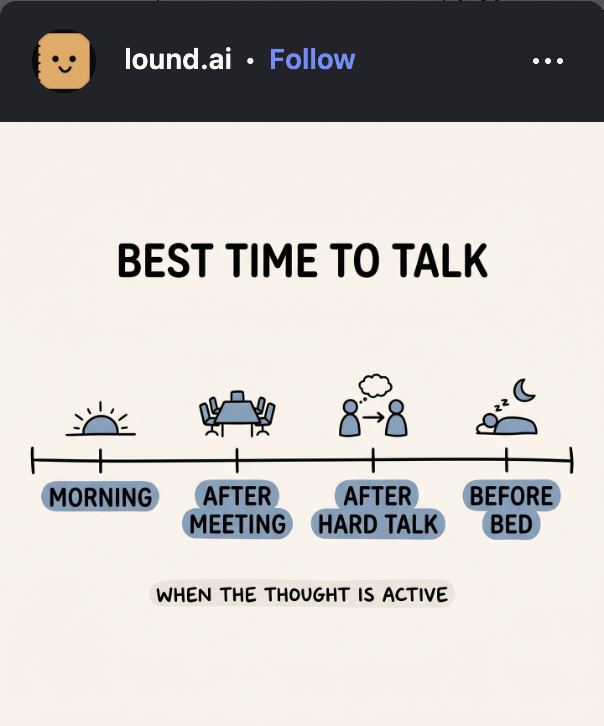
Then it can follow the rules, pair the right draft with the right image, check what is already scheduled, and ask before posting. For Lound, that might mean one post about voice journaling, one post about the best time to talk, and one short demo clip showing the recording flow.
sfeed gives the agent real tools for the final step. Social posting has a lot of small platform-specific details: text-only Facebook posts, Instagram media requirements, destination selection, staged media, scheduled jobs, failed jobs, and previews. The agent should call tools for those details instead of guessing.
The MCP server exposes tools for status, connected destinations, posting, Facebook post management, schedule status, dashboard and preview links, listing scheduled posts, rescheduling, duplicating, and canceling.
Account model
You do not need a separate signup to start. The CLI creates a sfeed identity automatically.
For Facebook, run sfeed auth facebook connect and approve access to the Pages you want. For Instagram, run sfeed auth instagram connect and sign in directly with a professional Business or Creator account. Instagram-only users do not need a Facebook Page or business portfolio.
Facebook and Instagram connections are independent. You can also connect Facebook Pages from multiple business portfolios. Run sfeed auth facebook connections to inspect those connections, and sfeed destinations to see the available publishing accounts.
Billing only enters the picture for hosted scheduling. The free path covers immediate posting and MCP usage.
Try it
Start with the docs:
Or install it directly:
curl -fsSL https://sfeed.dev/install.sh | sh